General
The Installation of CBun must be completed before the following.
Network Setup
To establish the network connection between the robot and the SpinBridge, you must set up the network on the robot. This is done by selecting Workcell / Interfaces / ethnet and entering the network details. Remember to setup the network on the SpinBridge via the Dashboard as well. See the SpinBridge Dashboard documentation for details.
The robot and the SpinBridge can be connected in different configurations.
The robot and the SpinBridge are both connected to a network switch via the upper port 1. Ext. network on the SpinBridge.
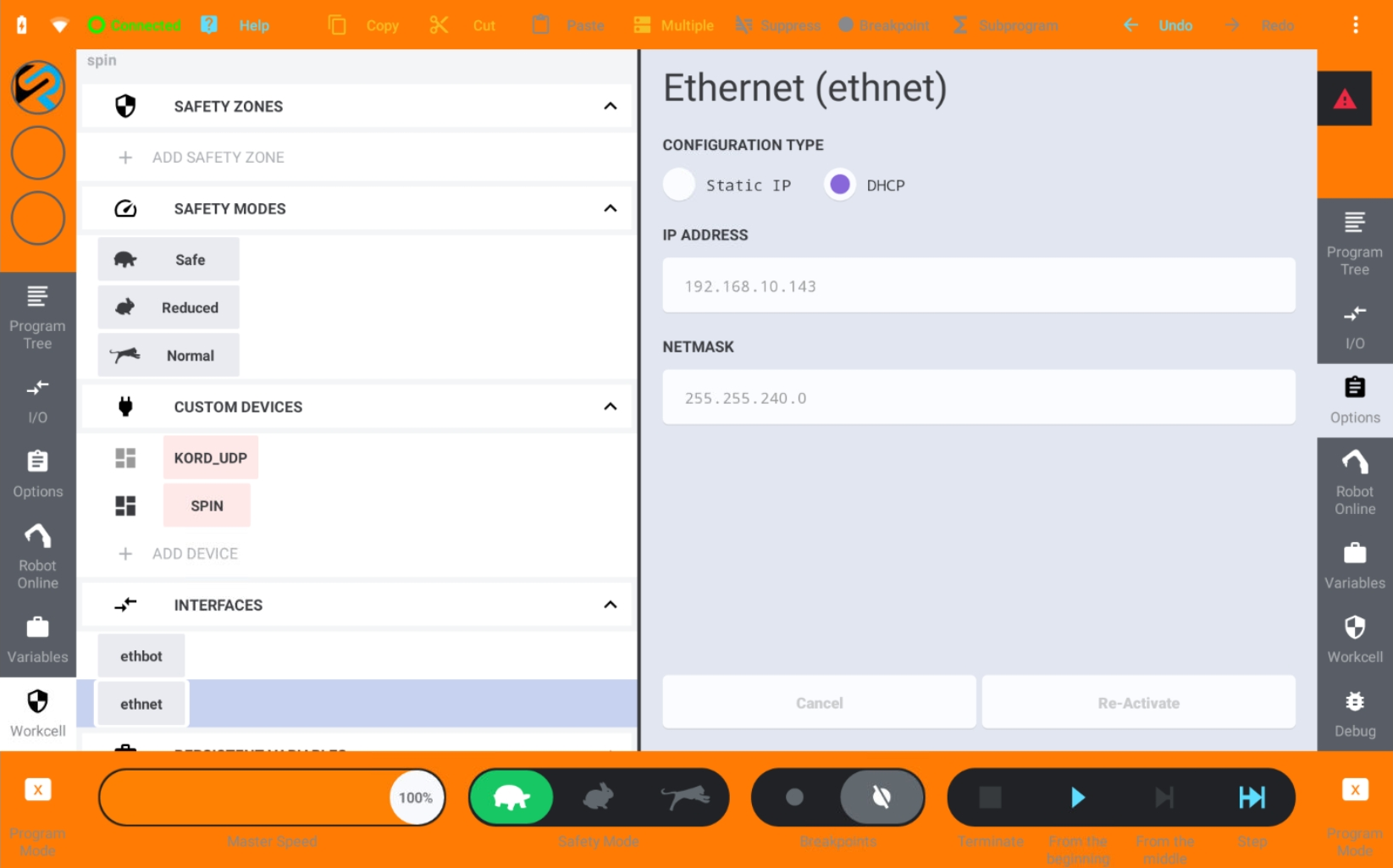
If the network has DHCP enabled, you can select DHCP. Then the robot will automatically get an IP address.
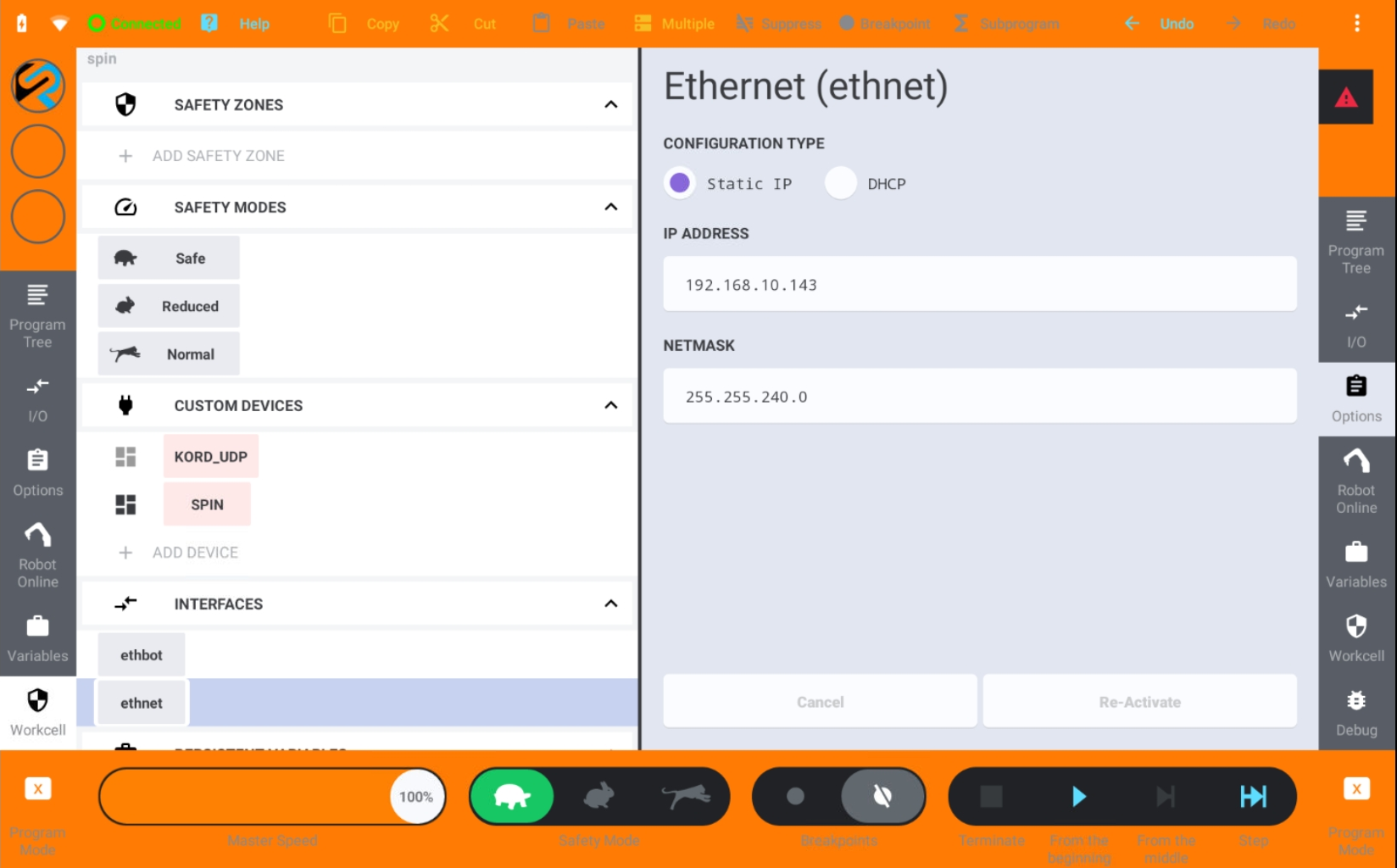
If the network does not have DHCP, you must you must select Static IP on the Network tab and enter an IP address and Netmask manually.
The robot and the SpinBridge are connected directly via the lower port 2. Robot. This is the recommended setup.
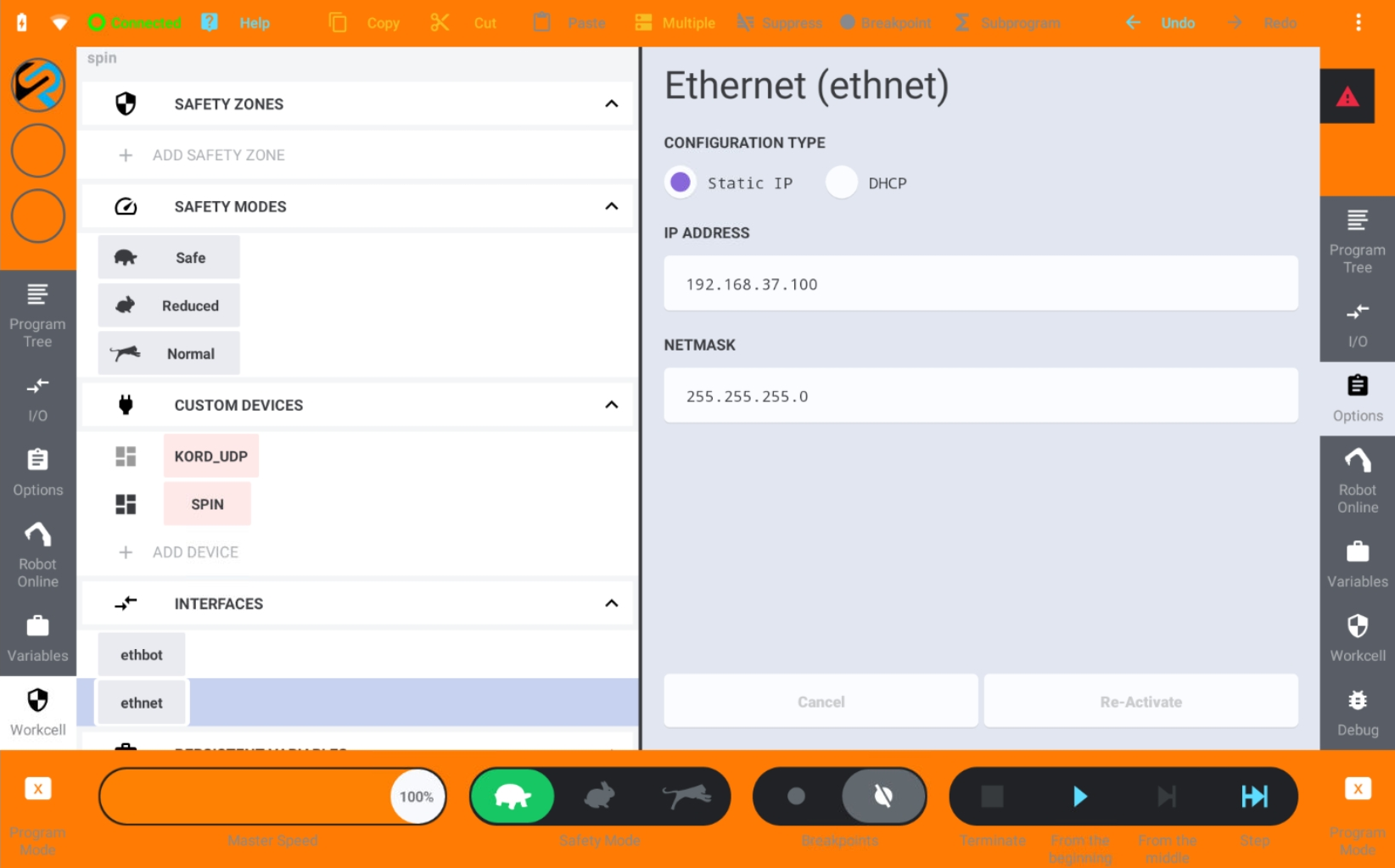
Then you must select Static IP and enter the IP address: 192.168.37.100 [1] and Netmask: 255.255.255.0 manually.
Activation
A CBun must be activated before it can be used.
Select Workcell / Custom Devices / KORD_UDP and press Activate.
Select Workcell / Custom Devices / SPIN / Config.
Enter the hostname or IP address of the SpinBridge in the Host Name field. The default value is the IP address of the SpinBridge 2. Robot port.
Press Activate.
Select Mouting and press Mount.
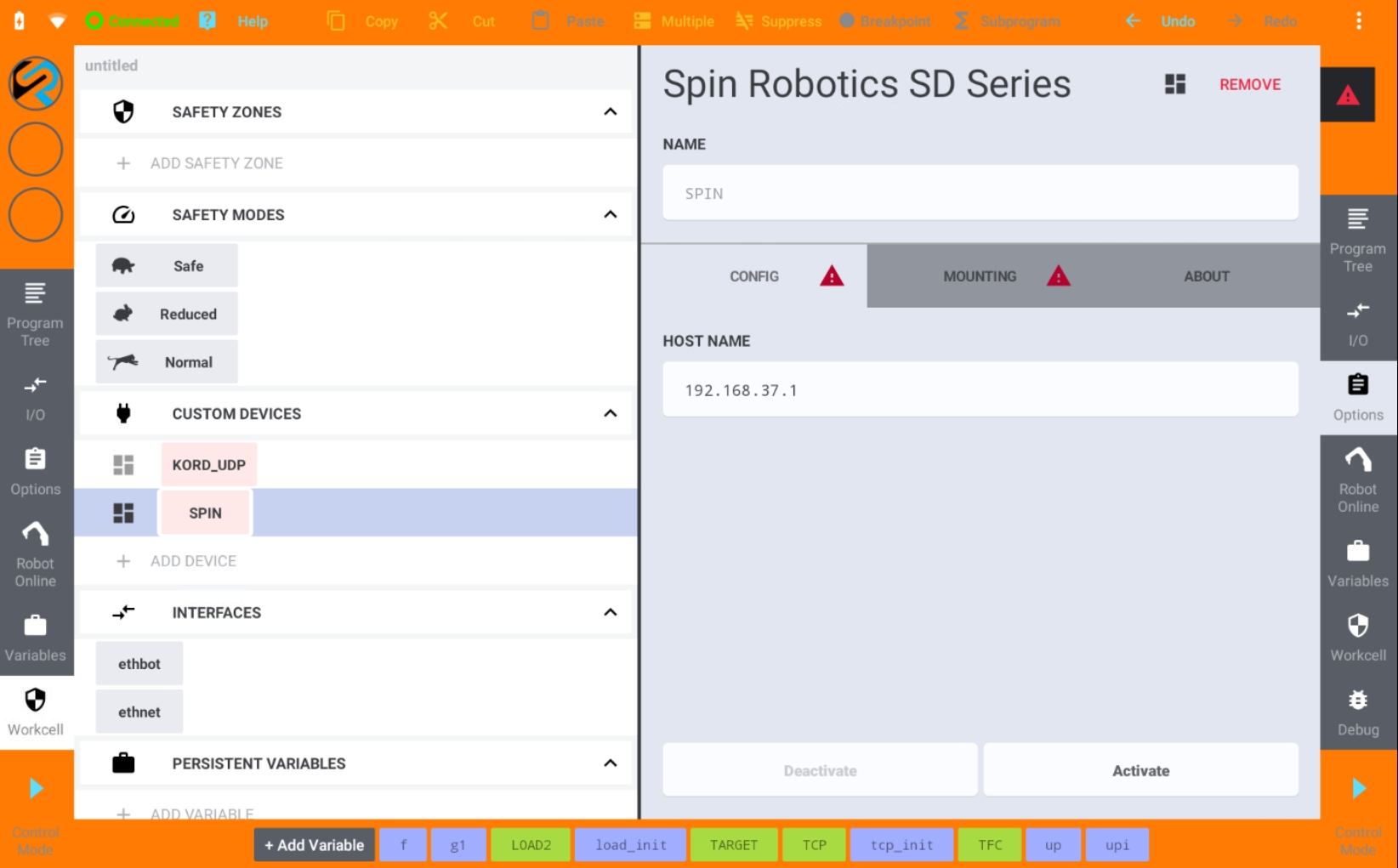
Activation of the CBuns.
Note
On some robots, digital output 6 must be enabled, as it is used by the connection heartbeat. This output cannot be used for any other purpose.
Tool Center Point
The TCP must be setup by selecting Variables / System Variables / TCP Frame. Enter the values corresponding to your Spin Robotics tool.
Variable |
SD35 |
SD70 |
|---|---|---|
X |
0 mm |
0 mm |
Y |
-248.6 mm |
-262.6 mm |
Z |
106.6 mm |
106.6 mm |
R |
90 ° |
90 ° |
P |
0 ° |
0 ° |
Y |
0 ° |
0 ° |
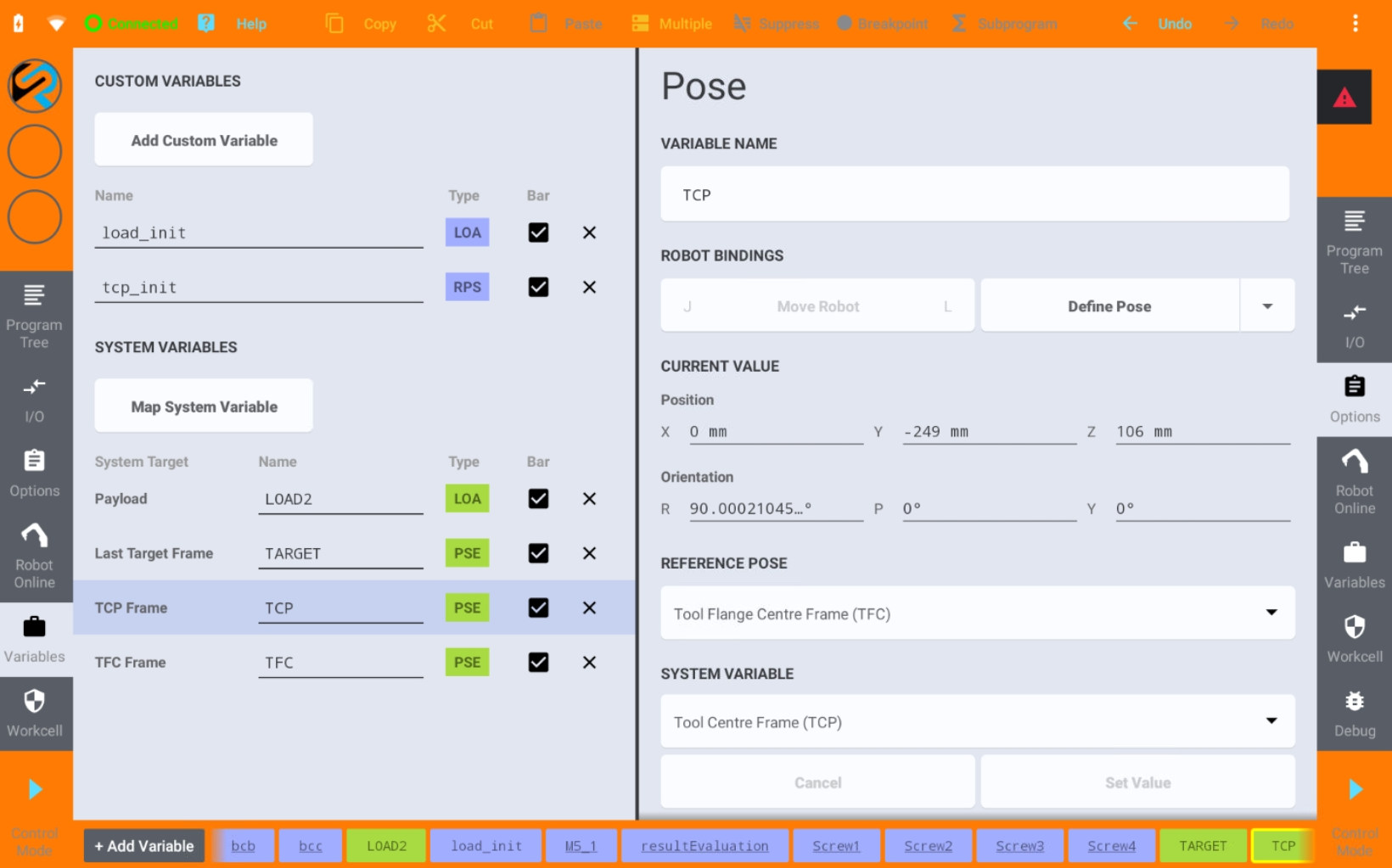
TCP setup.
Note
You can alter the TCP values if you have a customized TCP, e.g. if the tool is mounted on a 3’rd party tool changer. This also applies if the screw bit length is changed from the default value of 50 mm.
Payload
The payload of the tool is automatically set when the tool is mounted. TODO Elaborate on how to change the payload.